How to Use EpiNexus
Part of Learn. For the methods behind each step, read the free book Epigenomics Data Analysis with EpiNexus.
Getting Started
Welcome to EpiNexus! This guide will walk you through using the web interface to analyse your ChIP-seq, histone modification, or other epigenomic data — no command-line or coding experience needed.
How EpiNexus Works
Upload your files
Drag and drop your FASTQ.gz files — or BAM files with their peak files — or import public data from GEO, SRA or ENA, and choose your reference genome.
EpiNexus runs your analysis
A full epigenomic pipeline runs automatically — from raw QC to publication-ready results.
Explore interactive results
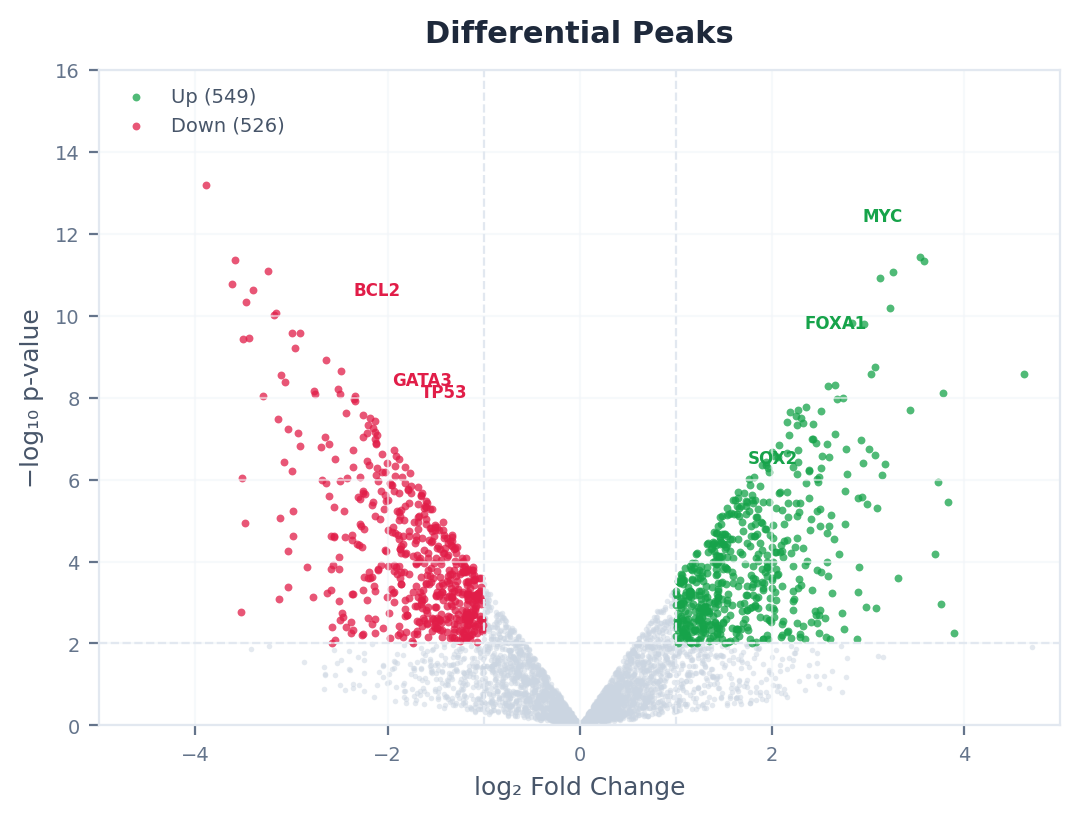
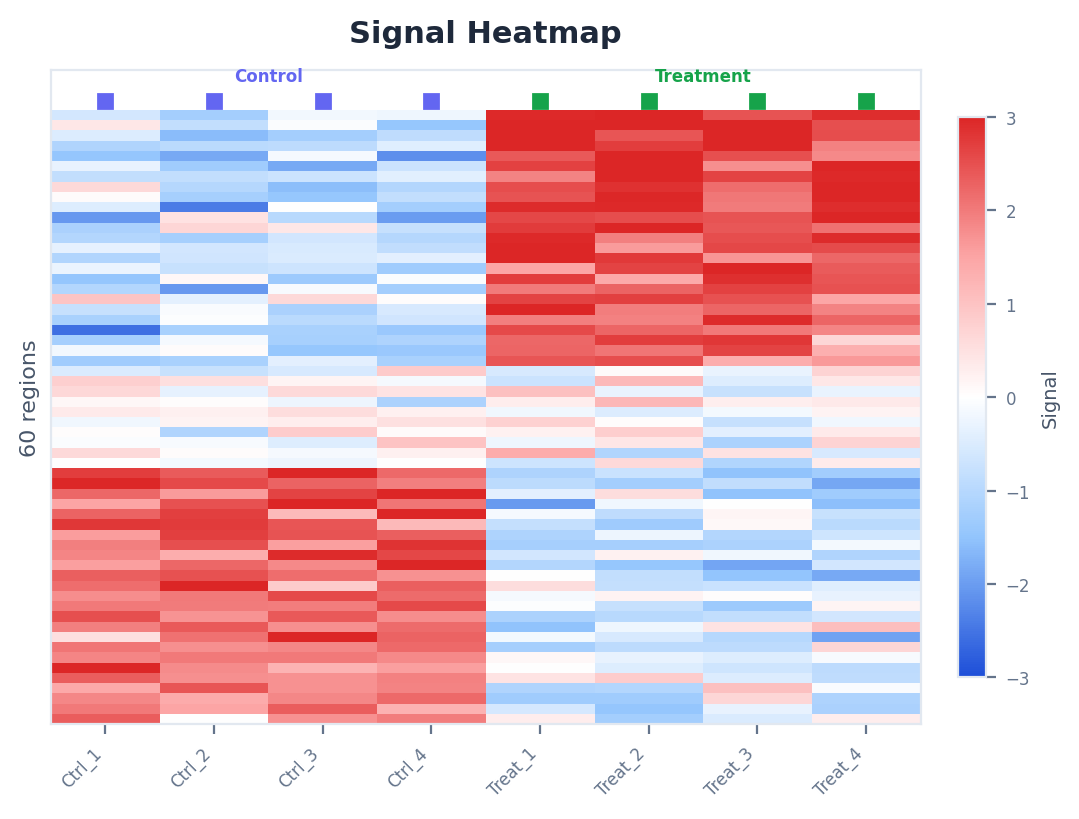
Browse volcano plots, heatmaps, super-enhancer rankings, a genome browser and more — interactive, with tables and the main figures ready to download.
What you can do with EpiNexus
Check data quality
See mapping rates, duplication, FRiP scores and more for every sample.
Annotate peaks
Find out which genes and genomic features your peaks overlap.
Compare conditions
Identify peaks that are gained or lost between treatment and control.
Integrate marks
Read H3K27ac and H3K27me3 changes together at each gene's promoter, in one run.
Find super-enhancers
Detect large regulatory regions that drive cell identity genes.
Link peaks to genes
Connect enhancer peaks to their likely target genes.
Import public data
Bring in GEO, SRA or ENA samples by accession, straight from the archive.
Find motifs & GO terms
See which transcription-factor motifs and biological processes your regions point to.
Analyse DNA methylation
Find differentially methylated regions in WGBS or RRBS data, with bisulfite QC.
Before you begin
You will need your data files ready to upload. EpiNexus accepts:
FASTQ files
Raw sequencing reads straight from the sequencer. If your data hasn't been aligned yet, start here — EpiNexus handles everything from raw reads onward.
BAM files + peak files
Aligned sequencing reads (already mapped to a genome), with the peaks called from them (.narrowPeak or .broadPeak). EpiNexus calls peaks only from FASTQ files, so a BAM-based analysis needs its peak files too.
Public data
Samples published in GEO, SRA or ENA can be imported by accession instead of uploaded — the reads go straight from the archive into your project.
DNA methylation
Bisulfite FASTQ files (WGBS or RRBS), or Bismark coverage (.cov) files if you have already aligned them.
Once you have your files, follow the steps in the sidebar — starting with Create a Project.
Create a Project
A project is a container for one experiment — it groups your samples, analysis runs, and results together in one place.
Open All Projects
After signing in at app.epinexus.io, click All Projects in the sidebar. You will see your existing projects, or an empty page if this is your first time.
Click "New Project"
The New Project button is at the top of the page.
Fill in the details
Project Name — Give it a descriptive name, e.g. “H3K27ac Treatment vs Control - March 2026”.
Description (optional) — Add notes about the experiment for your records.
Reference Genome — The list shows the genomes installed on the service, for example:
All 17 configured genomes are listed on the Pipelines page; if the one you need isn't offered, ask us. Not sure which genome? Check with whoever aligned your data, or look at the BAM file header. Most recent human data uses hg38.
Click "Create Project"
Your project is ready. Its page shows where you are — Setup, Pipeline, Results — and what to do next.
Tip: One project per experiment
Keep things organised by creating separate projects for different experiments. For example, one project for “H3K27ac in liver cancer” and another for “H3K4me3 in normal liver”.
Upload Your Files
After creating a project, bring in your sequencing data — uploaded from your computer or imported from a public archive — and describe your samples. EpiNexus handles all the bioinformatics processing from there.
Open Upload Data
In your project, click Upload Data in the sidebar (under Setup). It has two tabs: From my computer and From a public repository (GEO / SRA / ENA).
Upload from your computer
Drag and drop files, or click Browse Files. Depending on what you have:
FASTQ files (.fastq.gz) — Raw reads from the sequencer. Upload both read 1 and read 2 files for paired-end data.
BAM files — Aligned reads, one file per sample (e.g. “Treatment_Rep1.bam”), together with their peak files.
Files upload in the background in 50 MB pieces and pick up where they stopped if the connection drops. When a file is complete it shows Transfer verified, plus a format check for FASTQ, BAM and peak files.
Add peak files for BAM samples
EpiNexus calls peaks only from FASTQ files, so a BAM-based analysis uses the peaks you provide. Name each peak file after its BAM — e.g. “Treatment_Rep1.narrowPeak” (or .broadPeak) beside “Treatment_Rep1.bam” — and EpiNexus pairs them automatically.
Or import public data
On the From a public repository tab, type one or more accessions (GSE, GSM, SRR/SRX/SRP, PRJNA…) and click Look up. Check the table — target, condition, replicate and tissue are filled in from the archive's records; correct anything that's wrong — and click Import. The files go straight from the archive to your project and are checked against the archive's MD5 checksums; nothing is downloaded to your computer.
Register your samples
Open Samples in the sidebar. Each sample needs a name, its target (the histone mark or factor, or input/IgG for a control), its condition, its replicate number, and its files. You can also give its tissue and cell type, and a reference tissue (suggested from the tissue): after the run, EpiNexus checks that the sample looks like that tissue. Use Add Sample, or Import CSV with the columns SampleID, fastq_r1, fastq_r2, Factor, Condition and Replicate (optional: Tissue, CellType, TissueGroup). Imported public samples are registered for you. Note that importing a CSV replaces all the samples in the project.
How big are these files?
| File type | Typical size | What it contains |
|---|---|---|
| FASTQ | 5 – 30 GB | Raw sequencing reads straight from the sequencer |
| BAM | 1 – 10 GB | Aligned sequencing reads mapped to the genome |
| narrowPeak | 0.5 – 5 MB | Regions where your mark or factor is enriched (sharp peaks) |
| broadPeak | 1 – 20 MB | Regions where your mark is enriched (broad domains) |
Each account has 100 GB of storage; deleting files or projects frees it again.
Large file tip
BAM and FASTQ files can be very large, so a stable connection helps. If an upload is interrupted, it resumes from where it stopped — you can even close the browser and resume later.
Run an Analysis
Once your samples are registered and their files uploaded, you set up a run in four short steps. EpiNexus chooses the analysis steps that fit your assay and data.
Open "Run Pipeline"
Click Run Pipeline in the sidebar (or New Run on the project page).
Assay & Pipeline
Choose your assay — ChIP-seq, CUT&Tag, CUT&RUN, ATAC-seq or DNA Methylation — and the pipeline:
Full Pipeline
For FASTQ files: alignment, peak calling, QC and every downstream analysis — everything from raw reads to results.
Preprocessing Only
For FASTQ files, to check data quality first: trimming, alignment, peaks, signal tracks and QC — no differential or downstream analyses.
Analysis Only
For BAM files with their peak files: QC, annotation, differential analysis and the other downstream steps. EpiNexus doesn't call peaks from BAM files, and the Review step stops an Analysis Only run with FASTQ files selected.
Samples & Genome
Tick the samples to include and check the reference genome. For DNA methylation, put each sample in a group (e.g. treated, control) and choose the reference group.
Parameters (or keep defaults)
Every pair of conditions is compared by default — untick the comparisons you don't need. The other defaults suit most experiments; see Settings & Options for what you can change.
Review and launch
EpiNexus checks your design before anything runs — controls, replicates, the genome, and for methylation the library type — and lists anything to fix. Give the run a name if you like, then click Launch Pipeline. The run executes on the server: you can close the browser and come back later.
Watching progress
The run page shows each step as it starts and finishes, with its duration and any warnings; the Logs tab has the details, and you can cancel a run while it is going. Runs that start from FASTQ files take several hours, mostly for alignment; runs that start from BAM files are shorter. If no compute machine is free, the run shows “Waiting for a compute machine” and starts by itself when one is. If alignment fails, the run stops; if a later step fails, the other steps still finish and the run page says what went wrong.
When the run has finished, EpiNexus compares it with public chromatin data (the Regulatory Atlas line on the run page; human hg38, mouse mm10 and mm39). Run again starts a new run with the same samples and settings, using the current software.
View Results
When a run completes, click View analysis on the run page, or open any page under Analysis in the sidebar. Each page has a Viewing results from picker to switch between runs. The run page's Results tab lists every output file, and links to the MultiQC report.
Analysis pages
Quality Control
Metrics for each sample — reads, usable fragments, mapping rate, duplication, FRiP, library complexity, fragment sizes, TSS enrichment — graded Good, Marginal, Below minimum or Fail against published thresholds for the kind of sample, with a plain-language interpretation. A Sample identity card shows the tissue check. DNA-methylation runs show bisulfite QC here.
Annotation
Where your peaks fall — promoter, UTR, exon, intron, distal intergenic — their distance to the nearest TSS and their nearest gene, with a sortable table.
Differential
Peaks that change significantly between conditions: volcano and MA plots, PCA, heatmaps, and a table with fold change, FDR and direction (gained or lost). Download every peak as a CSV, or open any peak in the genome browser.
Signal Profiles
Tornado heatmaps and average profiles of each sample's signal around peaks, and a sample-correlation matrix (runs from FASTQ files).
Genome Browser
Signal tracks, peaks and reads in an IGV browser, with a link to share, an IGV session for the desktop app, and a button to open the tracks in UCSC.
GO Enrichment
Gene Ontology terms enriched near gained or lost regions, or near each sample's peaks (GREAT-style), by biological process, molecular function and cellular component.
Regulatory Atlas
Your changed regions and each sample's peaks compared with public chromatin data: heatmaps of tissues × chromatin states, ENCODE element classes, genome-wide states, a region table, and the tissue match of each sample. For human (hg38) and mouse (mm10, mm39).
Super-Enhancers
For H3K27ac, MED1 or BRD4 samples: the ROSE ranking (hockey-stick plot) and a table of super-enhancers with their location, signal and rank.
Integration
When one run has differential results for both H3K27ac and H3K27me3 between the same conditions: genes grouped by what both marks did at their promoter (for example H3K27ac gained and H3K27me3 lost), changes nearby, a flow chart and a gene table you can download.
TF Analysis & Motifs
Transcription-factor motifs from JASPAR 2024 enriched in your peaks (MEME AME), and motifs in changed regions: gained and lost regions against unchanged ones (MEME SEA, monaLisa), grouped by TF family, with sequence logos to compare them.
Peak–Gene Links
Each enhancer's predicted target genes from the Activity-by-Contact (ABC) model, for ATAC-seq, DNase-seq or H3K27ac samples, and the genes with the most enhancers.
ATAC-seq
Fragment-size distributions and regions that become more open or more closed between conditions.
Methylation
Differentially methylated regions (dmrseq) with their nearest gene and CpG-island context: the CpGs tested, mean methylation per group, a volcano plot, sample plots (PCA, correlation, coverage) and a DMR table — or the strongest candidate regions, labelled, when nothing is significant. Bisulfite QC with M-bias plots is on the Quality Control page.
The sidebar shows the pages that fit your project's assays — for example, a DNA-methylation project shows Quality Control and Methylation.
Downloading results
Tables download as tab-separated files (they open in Excel); the main figures download as PNG or SVG. Under Output in the sidebar, Reports builds a report with figures and a methods section (HTML or Markdown, or PDF from your browser), and Export downloads a zip of the run's peaks and tables, a GEO submission package, and the files to reproduce the run (parameters, commands and methods). Signal tracks, alignments and methylation calls are too large for the zip: Export lists them as direct download links, valid for 24 hours.
Understand Your Data
Not sure what these results mean? Here is a plain-language guide to the key concepts.
What is a “peak”?
A peak is a region of the genome where your histone mark is enriched compared to the background. Think of it as a “hotspot” of epigenetic activity. Each peak has a location (chromosome, start, end) and a signal strength.
What is FRiP score?
Fraction of Reads in Peaks — what percentage of your sequencing reads land inside called peaks. Higher is better, and what counts as good depends on the assay and the target. EpiNexus grades FRiP only where a published value exists: for transcription factors in ChIP-seq (good from 5%, below the minimum under 1%, Landt et al. 2012), for ATAC-seq (good from 30%, below the minimum under 20%, ENCODE), and for histone marks in CUT&Tag and CUT&RUN (good from 30%, nf-core/cutandrun; EpiNexus's own minimum of 10%). For histone marks in ChIP-seq, ENCODE sets no FRiP value, so it is shown without a grade. Low FRiP may mean low enrichment or too much background.
What do the QC grades mean?
Each metric is Good, Marginal (between the good value and the minimum), Below minimum (a warning; the sample is kept) or Fail. A sample fails only at ENCODE's error level — for example fewer than 5 million usable fragments in ChIP-seq — or when it has no usable data. The values depend on the kind of sample: a broad mark such as H3K27me3 needs 45 million usable fragments, a narrow mark such as H3K27ac 20 million. The QC page shows each sample's class under Graded as.
What does “differential” mean?
A differential peak is one that is significantly more (gained) or less (lost) enriched in one condition versus another. For example, an H3K27ac peak that appears only in treated cells but not in control cells is a “gained” peak — suggesting that genomic region became activated by the treatment.
What is FDR?
False Discovery Rate — the expected share of false positives among the results called significant. With an FDR cut-off of 0.1, about 10% of the peaks called differential are expected to be false positives. Lower FDR = more confident. EpiNexus calls a peak differential when its FDR is below 0.1 and its fold change is more than √2 (|log2 fold change| > 0.5).
What is a super-enhancer?
Super-enhancers are clusters of nearby enhancers that have unusually high levels of H3K27ac (or of the co-activators MED1 and BRD4). They control important cell-identity genes and are often disrupted in cancer. They are identified by ranking all stitched enhancer regions by signal and finding the “inflection point” above which regions are exceptionally strong.
What does “distance to TSS” mean?
TSS = Transcription Start Site, the beginning of a gene. The distance from a peak to the nearest TSS helps you understand whether a peak is at a promoter (close to TSS, within ~3 kb) or at a distal enhancer (far from TSS, often 10–1000 kb away).
Settings & Options
The defaults suit most experiments and are set for your assay. These are the options on the Parameters step when you launch a run. (The app's own Settings page only holds the light/dark appearance and the version.)
| Setting | Default | What it does |
|---|---|---|
| Differential comparisons | Every pair of conditions | Which conditions to compare, and which side is the reference (control-like names such as “control”, “WT” or “DMSO” are taken as the reference). Untick all to skip differential analysis. |
| Paired design | Off | Tick when samples with the same replicate number were processed together (e.g. littermates); the model then accounts for the pairing. |
| Peak caller | MACS3 (ChIP-seq, ATAC-seq); SEACR (CUT&Tag, CUT&RUN) | GoPeaks is also available for paired-end CUT&Tag and CUT&RUN. |
| Normalization | TMM (ChIP-seq), library size (ATAC-seq), RLE (CUT&Tag, CUT&RUN) | How samples are scaled before comparing them. These methods assume most regions don't change; when a mark changes globally, use spike-in calibration. |
| Q-value threshold | 0.05 (ChIP-seq, ATAC-seq), 0.01 (CUT&Tag, CUT&RUN) | The peak-calling significance cut-off. |
| Min peak length | Empty (the peak caller's own default) | The shortest peak MACS3 or GoPeaks reports. SEACR has no such setting. |
| Spike-in normalization | On with E. coli (CUT&Tag, CUT&RUN); off otherwise | For libraries containing DNA or chromatin from another species; any installed genome of another species can be the spike-in. Each read is assigned to the genome it matches best, and samples are scaled by their spike-in reads. |
| Remove duplicates from targets | Off | CUT&Tag and CUT&RUN only: identical fragments are expected signal there, so duplicates are kept in target samples (IgG controls are always deduplicated). |
| Control depth scaling | MACS default | ChIP-seq only: scale a shallow input up instead of the deeper library down. |
| Samples that fail QC | Keep and flag | Keep failing samples and flag the results, or exclude them from the statistics. |
| Consensus peaks for differential | Each sample's peaks | Or only the regions supported by peaks that reproduce between replicates. |
| Library type | Detect from the reads | DNA methylation only: RRBS or WGBS. RRBS reads start at an MspI site, which EpiNexus checks at the Review step; RRBS is never deduplicated. |
| Minimum reads per CpG, in every sample | 4 | DNA methylation only: CpGs with fewer reads in any sample are not tested. |
| Region FDR (q-value) | 0.05 | DNA methylation only: the cut-off for calling a differentially methylated region (dmrseq). |
Set by EpiNexus
These are the same for every run. Most follow published practice; each run's methods text says which are EpiNexus's own choices.
| What | Value |
|---|---|
| Differential peaks | FDR < 0.1 and |log2 fold change| > 0.5 |
| Narrow or broad peaks | Chosen per mark (e.g. H3K27ac and H3K4me3 narrow; H3K27me3, H3K9me3, H3K36me3 and H3K4me1 broad) |
| Promoter window | ± 3 kb around a TSS |
| Super-enhancer stitching | 12.5 kb, with peaks within ± 2.5 kb of a TSS left out (ROSE) |
| Regions tested for differences | Sharp histone marks (e.g. H3K27ac): one peak call on the pooled libraries, long regions split into pieces of up to 5 kb; transcription factors and ATAC-seq: 501 bp windows around peak summits; broad marks: csaw windows |
| QC grades | Published values for each kind of sample (ENCODE and others); only ENCODE's error level fails a sample |
| Peak–gene links | Within 5 Mb; links scoring above 0.02 (EpiNexus's choice); only for ATAC-seq, DNase-seq or H3K27ac samples |
| Two-mark integration | Promoter: ± 3 kb around a gene's start; nearby: the nearest start within 100 kb |
| Motifs in changed regions | q < 0.05; sets of fewer than 50 regions are not tested |
When should I change the defaults?
Most experiments don't need to. Untick comparisons you aren't interested in; tick the paired design when replicates were processed in pairs; turn on spike-in calibration if your libraries carry a spike-in, especially when the mark may change globally. To check data quality before a full analysis, choose Preprocessing Only.
Troubleshooting
My analysis failed
Open the run page: the steps table shows which step failed and why, and the Logs tab has the details. The most common causes are: (1) wrong genome selected — make sure your files match the chosen reference, (2) corrupted or truncated upload — try re-uploading, (3) very low quality data with no peaks detected. If none of these apply, reach out via the Contact page.
Upload is stuck or timing out
Large FASTQ.gz files can take a while to upload, depending on your connection. Uploads resume from where they stopped: re-open the Upload Data page and add the same file again. If the page reports that your storage is full, delete files or projects you no longer need (each account has 100 GB).
No peaks detected
This usually means the data has very low signal-to-noise. Verify that (1) the correct assay type is selected, (2) you have enough sequencing depth (ENCODE asks for 20 million usable fragments for narrow marks and transcription factors, 45 million for broad marks), and (3) the antibody or enrichment step worked as expected. Check the QC report for library complexity and FRiP scores.
Differential analysis shows zero results
Make sure you have at least two conditions with replicates. If you only have one sample per condition, the statistical test cannot estimate variance. Also check that each sample's condition is right on the Samples page and that the comparison you want was ticked when you launched the run.
Results look different from my previous tool
Minor differences in peak counts or differential calls are expected between tools, because of different thresholds, filters and statistics. EpiNexus uses MACS3 for ChIP-seq and ATAC-seq, SEACR for CUT&Tag and CUT&RUN, and DESeq2 statistics (csaw for broad marks); its fixed thresholds are listed under Settings & Options, and every run's methods text and recorded commands show exactly what was done.
Browser is slow or unresponsive
Interactive plots with very large datasets (>100k peaks) can be demanding. Try using Chrome or Firefox with hardware acceleration enabled. Closing other tabs can also free up memory. If a specific plot is slow, use the built-in filters to reduce the data shown.
How do I delete a run?
Open the run (or the project’s Runs page) and click Delete run. Any finished run — completed, failed or cancelled — can be deleted; cancel a run that is still going first. A deleted run disappears at once and can be restored from Recently deleted on the Runs page for 7 days; after that its result files are removed for good, and backup copies expire within a further 30 days.
How do I delete a project?
Open All Projects, find the project, and click its trash icon. You will be asked to confirm. Deletion is permanent — all uploaded files, runs and results are removed, including recently deleted runs, and backup copies expire within 30 days. A project with a run still going can’t be deleted: cancel the run (or wait for it to finish) first.